“Reset” on a TI-84 Plus CE can mean several different operations. Some only clear temporary data; one erases every program and app you have installed. Choosing the wrong one is the usual way people lose work. This guide follows Texas Instruments’ official test-preparation guide (checked 23 November 2026) and explains each option in plain language.
Step 1: back up first
Before any reset that deletes data, back up your programs, apps and variables to a computer with TI Connect CE, TI’s free connectivity software. TI’s own guides repeatedly advise backing up because resets can permanently erase apps and data.
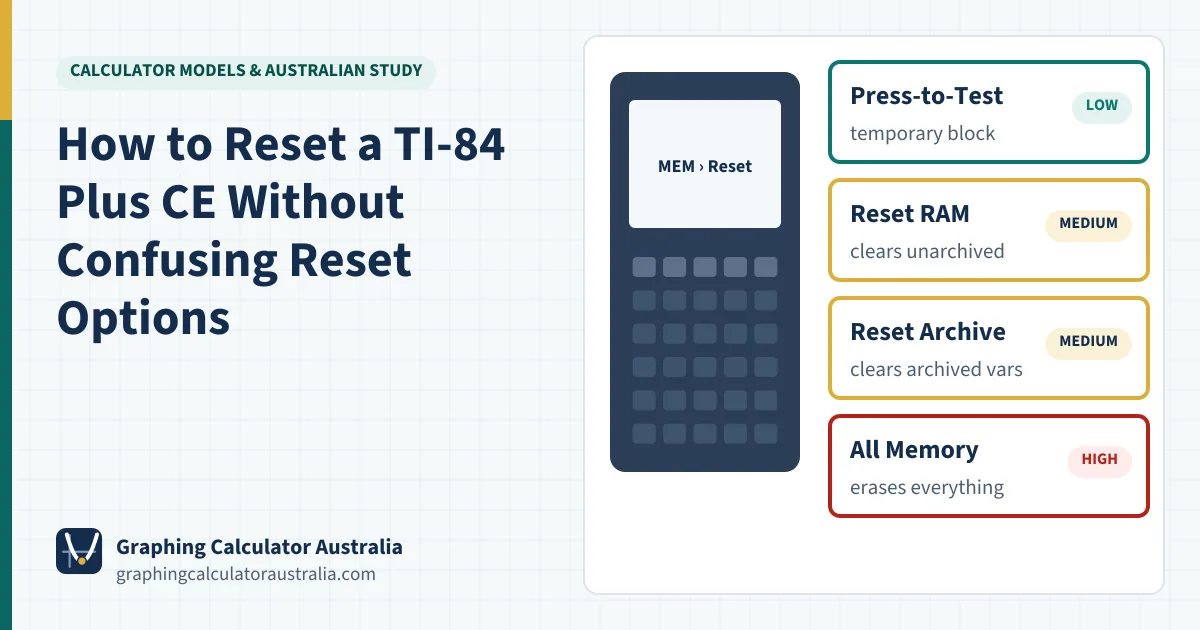
Step 2: choose the smallest reset that solves the problem
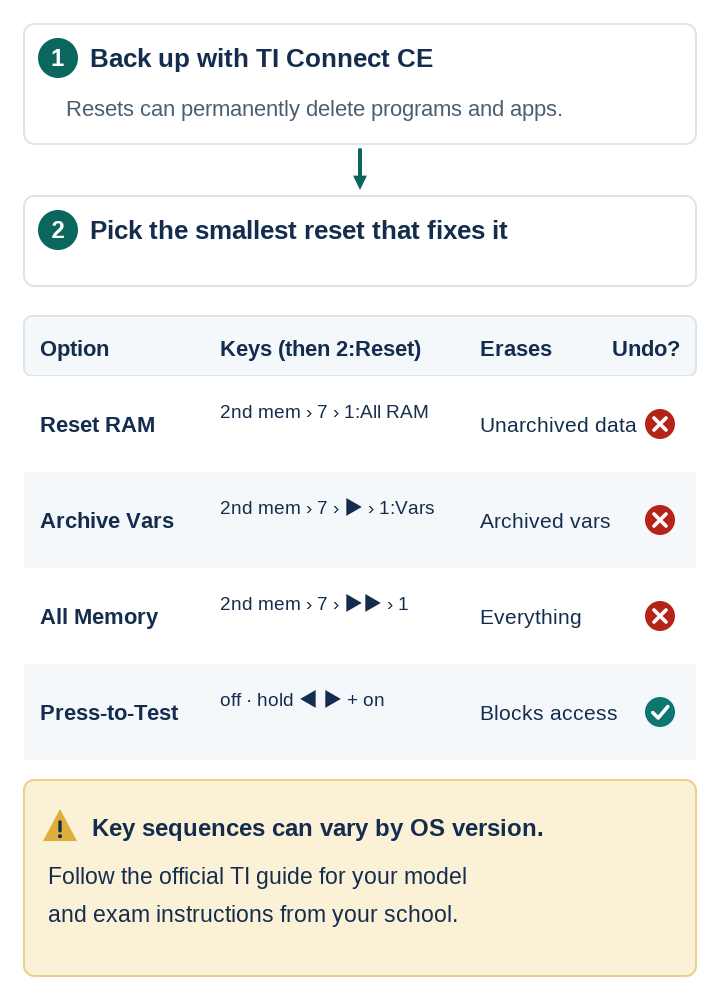
| Option | Keys | What it erases | Confirmation shown |
|---|---|---|---|
| Reset All RAM | 2nd mem, 7:Reset, 1:All RAM, 2:Reset | All RAM data, including programs stored in RAM (unarchived) | RAM Cleared |
| Reset Archive Vars | 2nd mem, 7:Reset, ARCHIVE menu 1:Vars, 2:Reset | Archived variables and archived programs | Arc Vars Cleared |
| Reset All Memory | 2nd mem, 7:Reset, ▶▶, 1:All Memory, 2:Reset | All data, programs and user-installed apps; restores default settings | MEM Cleared |
| Press-to-Test | Turn off with 2nd off, then hold ◀ ▶ and on together | Nothing permanently; temporarily blocks access to data, programs and apps | RESET COMPLETE |
TI notes that the built-in Finance App is not deleted by a full memory reset. Apps you installed yourself are deleted.
Which one do I need?
- Calculator is behaving oddly or a program crashed: try a RAM reset first. Archived items survive it.
- You must clear everything for a teacher or exam, permanently: All Memory — but only after backing up.
- Your exam requires data to be hidden but you want it back afterwards: Press-to-Test, if your authority and school use it. TI’s guide explains that Press-to-Test is exited by linking to another TI-84 series calculator and sending a list, or by using TI Connect CE.
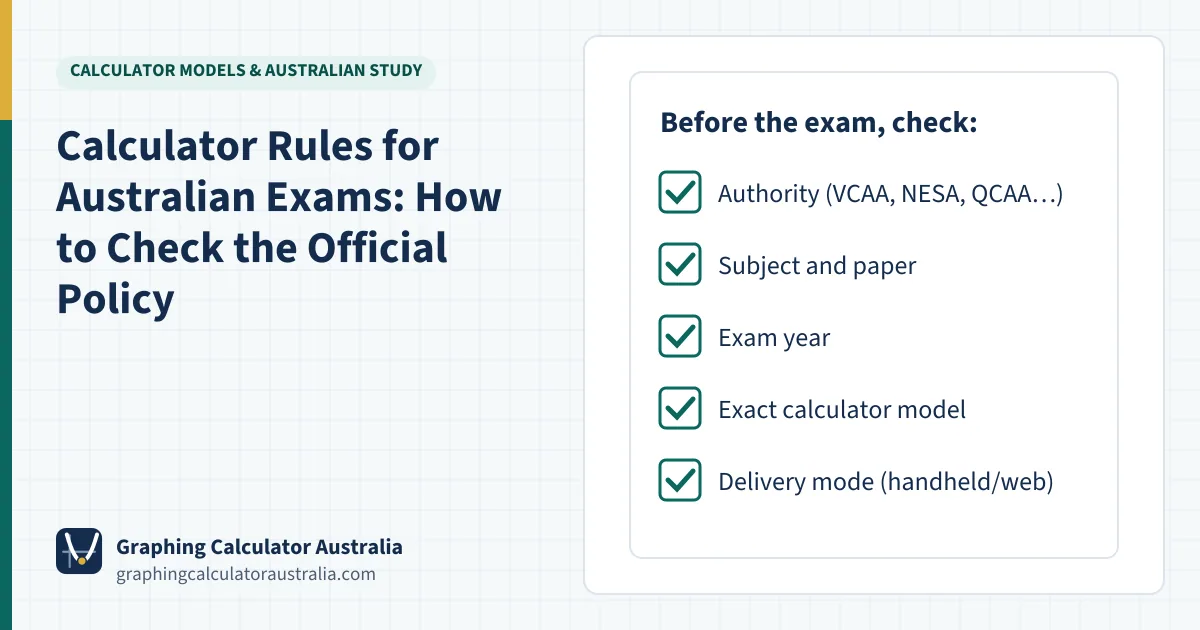
Always follow the specific instructions from your school or exam authority; some publish their own reset procedures (for example, QCAA’s graphics calculator list includes reset instructions for approved models). See Australian exam calculator rules.
Restoring apps after a reset
TI lists three ways to restore apps: send them from a computer with TI Connect CE, link from a comparable calculator, or restore from a backup.
If the calculator will not turn on
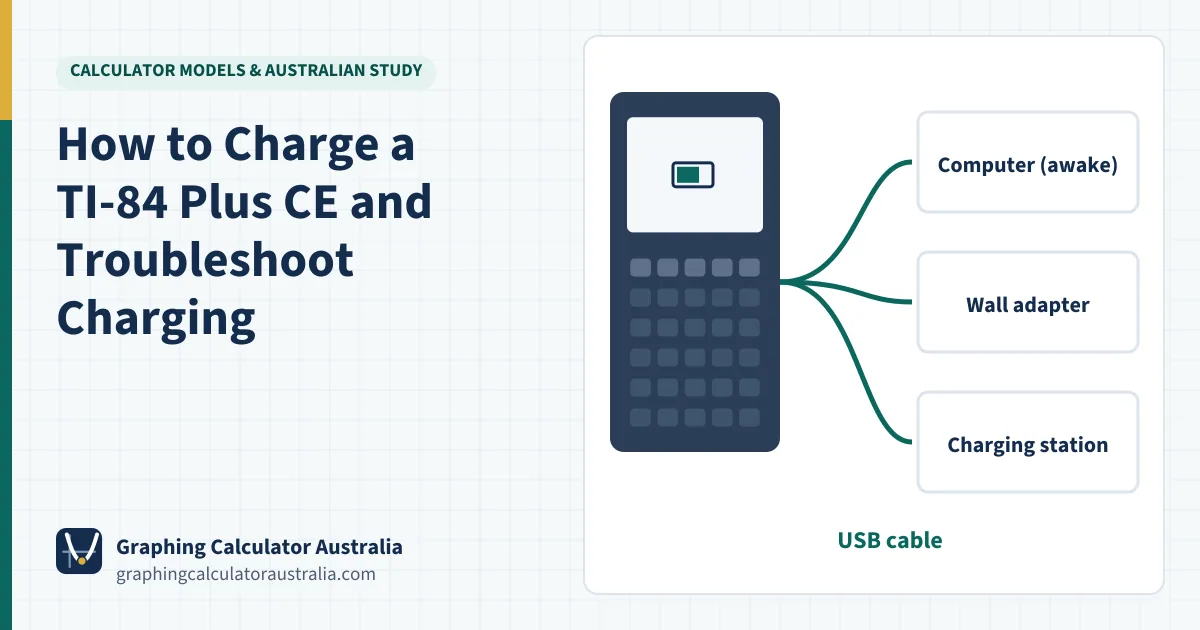
A reset through the menus needs a working screen. If your TI-84 Plus CE will not turn on, TI’s troubleshooting article suggests, in order: checking for stuck keys, backing up if possible, checking the USB connection and charging for about 3 hours, checking the reset button on the back, holding the reset button for at least 5 seconds, then further steps such as reinstalling the operating system with TI Connect CE, and contacting TI support if the problem continues. Read the full article before doing any step, and see our charging guide.
Common mistakes
- Choosing All Memory when a RAM reset would do.
- Assuming archived programs survive All Memory. They do not.
- Resetting on exam morning without a backup.
- Using a pencil tip on the reset button; TI recommends a paper clip.
Common questions
Can I reset without deleting programs?
A RAM reset keeps archived items, and Press-to-Test hides rather than deletes. No reset option is guaranteed to keep everything, so back up first.
Does this apply to the older TI-84 Plus?
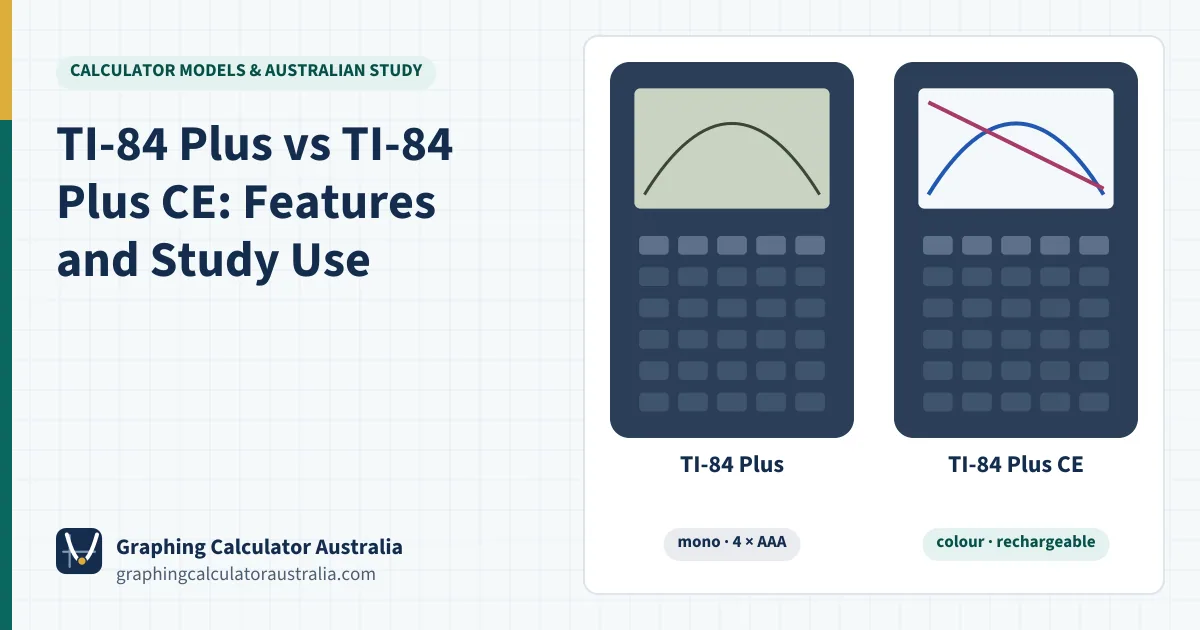
TI’s guide covers the TI-84 Plus family and notes screens can vary by model and OS. The TI-84 Plus has no rechargeable battery, so charging advice does not apply. Check TI’s guide for your model.
Sources and references
- TI-84 Plus family test preparation guide: resetting and Press-to-Test — Texas Instruments (checked 23 November 2026)
- Troubleshooting: TI-84 Plus CE will not turn on or charge — Texas Instruments (checked 23 November 2026)
How this guide was made: drafted with AI assistance under the site’s editorial policy. Worked examples and plotted figures are computed by the same maths engine as our calculators and checked by automated tests. Found an error? Report a correction.