The TI-84 Plus CE uses a built-in TI Rechargeable Battery rather than AAA batteries. Charging is simple, but a flat calculator on exam day is a common problem. This guide summarises Texas Instruments’ own instructions, checked on 23 November 2026.
What you need
The cable
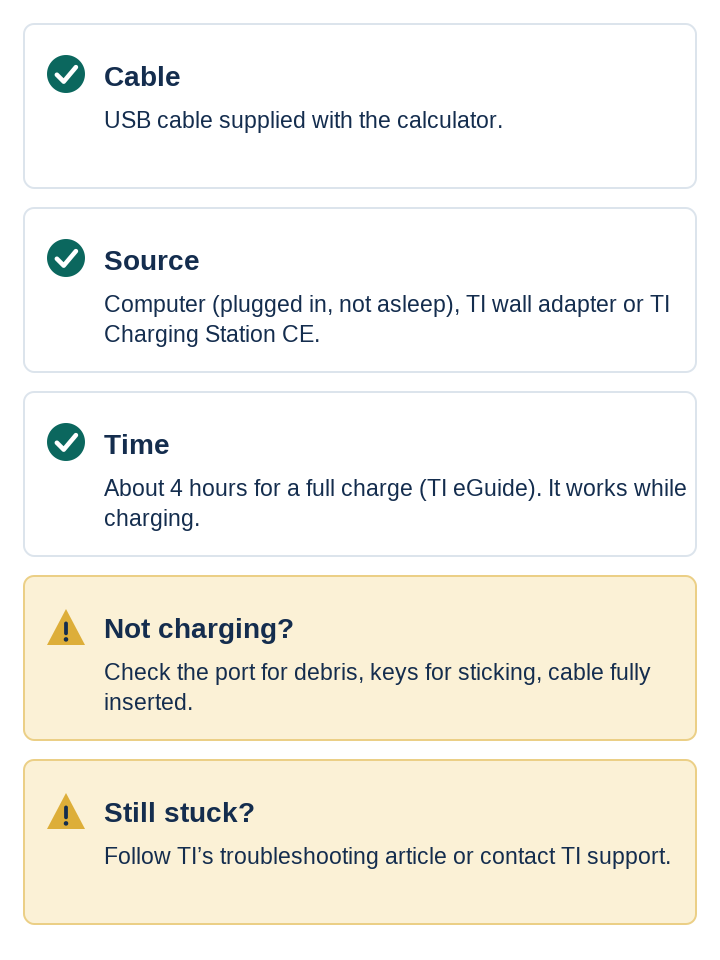
Use the USB cable supplied with the calculator.
A power source
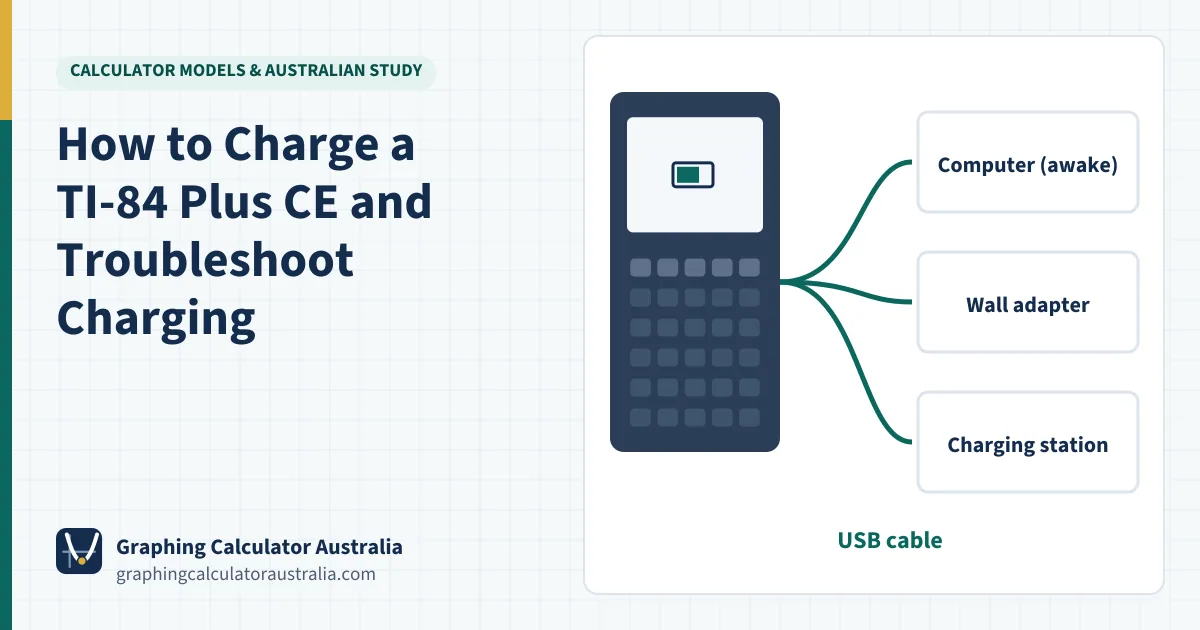
TI’s eGuide lists three ways to charge:
- A computer, using the USB cable. The computer needs TI’s USB driver, which is included with TI Connect CE or TI-SmartView CE software. TI’s troubleshooting article adds that a laptop should be plugged in and not asleep or hibernating.
- A wall outlet, using a TI wall adapter (which may be sold separately).
- A TI Charging Station CE, designed for classroom sets.
TI’s troubleshooting article says wall chargers should be TI or UL-certified and rated at least 1 amp. If you are unsure whether a charger is suitable, use TI’s adapter or a computer.
Time
TI’s eGuide states that a full charge takes about four hours, that the exact time may vary, and that the calculator works normally while charging. You do not need to remove the battery. TI recommends charging before classroom use and before exams.
Step by step
- Connect the small end of the USB cable to the calculator’s port, pushing it fully in.
- Connect the other end to a switched-on computer, a TI wall adapter or a charging station.
- Leave it to charge — about four hours from flat.
- Disconnect and check the battery level on the calculator before relying on it.
If it will not charge or turn on
TI’s support article lists steps in this order (summarised — read the full article before starting):
- Check for stuck keys under the keypad.
- Back up files with TI Connect CE if possible, because some later steps can erase data.
- Check the USB connection: push the cable fully in, inspect the port for debris or bent pins, and clear dust with compressed air. TI notes physical port damage is not covered by warranty.
- Charge for about 3 hours from a computer or wall adapter.
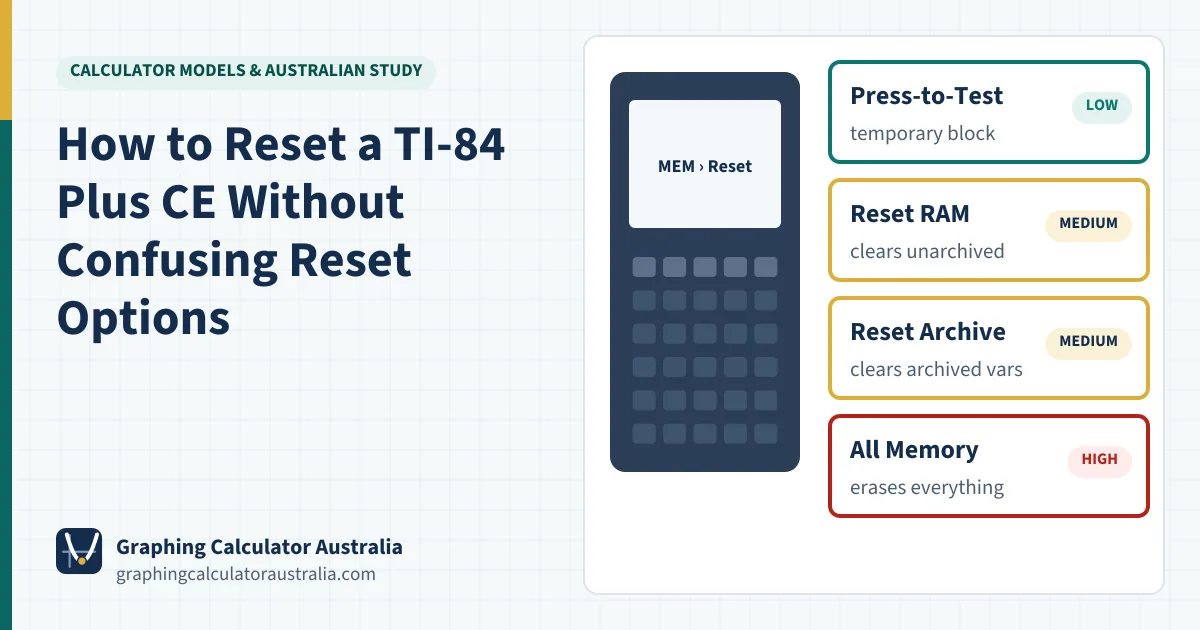
- Check the reset button on the back. If it is stuck in, free it with a paper clip (not a pencil, which can leave debris).
- Press and hold the reset button for at least 5 seconds.
- Further steps include disconnecting the battery for about 3 minutes, charging for 1–2 hours, reinstalling the operating system, and contacting TI support.
TI also notes that lithium-ion batteries typically last about 2.5 to 3 years; an older calculator may need a replacement TI Rechargeable Battery.
Exam-day checklist
- Charge fully the night before.
- Check battery level in the morning.
- Confirm any reset or test-mode requirements with your school — see resetting a TI-84 Plus CE.
Common questions
Can I charge it with a phone charger?
TI’s article says wall chargers should be TI or UL-certified and rated at least 1 amp. Many phone chargers are not certified to that standard; we cannot verify individual chargers. When in doubt, use a computer or TI’s own adapter.
Does the older TI-84 Plus charge the same way?
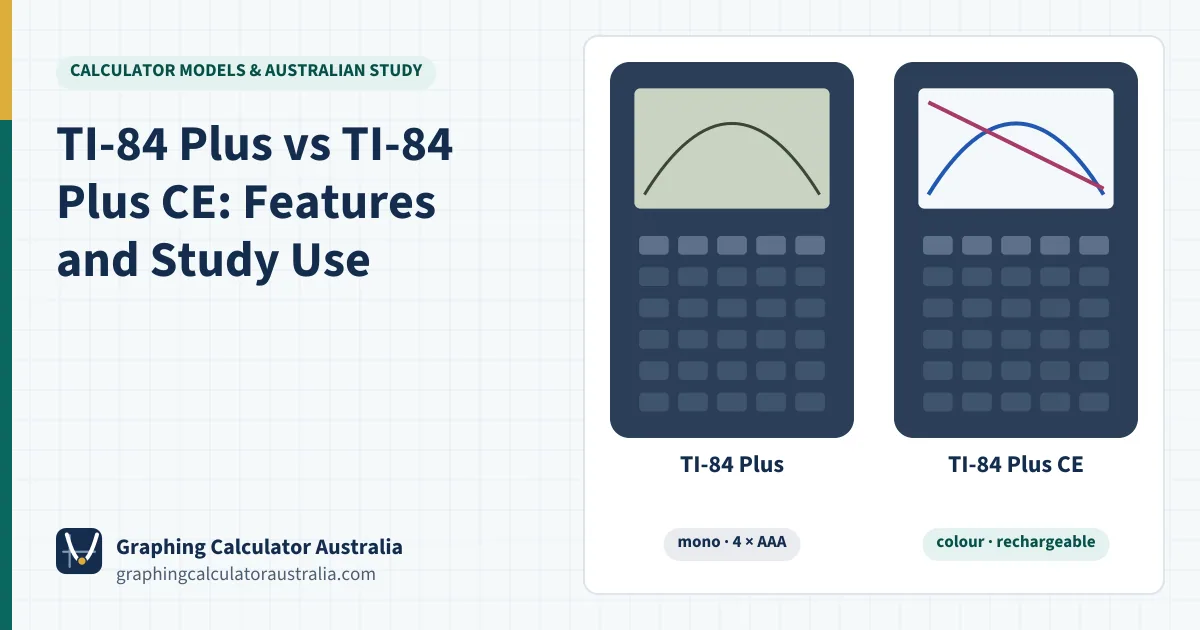
No. The TI-84 Plus uses four AAA batteries with a backup cell, according to TI’s specifications. See TI-84 Plus vs TI-84 Plus CE.
What do the charging lights mean?
The TI pages we checked did not describe the charging indicator, so we do not state it here. Check your calculator’s guidebook or TI support.
Sources and references
- TI-84 Plus CE eGuide: Recharging the TI rechargeable battery — Texas Instruments (checked 23 November 2026)
- Troubleshooting: TI-84 Plus CE will not turn on or charge — Texas Instruments (checked 23 November 2026)
How this guide was made: drafted with AI assistance under the site’s editorial policy. Worked examples and plotted figures are computed by the same maths engine as our calculators and checked by automated tests. Found an error? Report a correction.